
Commercial VPN services charge $5–15 monthly while collecting your browsing data, throttling speeds, and requiring blind trust in their "no-logs" policies. By building your own private VPN network with Tailscale, you control every endpoint, own your data, and pay only for the infrastructure you use — often under $2/month for a VPS server.
Tailscale creates a secure mesh network using WireGuard encryption that connects your devices directly. Unlike traditional VPNs with centralized servers, your traffic flows peer-to-peer when possible, delivering faster speeds and military-grade encryption. Exit nodes let you route internet traffic through specific devices on your network, whether that's your home router, an Apple TV, or a VPS server in another country.
The Hybrid Advantage: Residential + Data Center Exit Nodes
The magic happens when you combine residential exit nodes with self-hosted VPS exit nodes. Here's what each brings to the table:
Residential exit nodes (home devices like Apple TV, Fire TV, Google TV, spare computers, Raspberry Pi, etc):
- Access your home network remotely with complete privacy
- Appear as regular residential traffic, ideal for accessing geo-restricted content
- No additional hardware costs — use devices you already own
- Access local network resources like printers, NAS drives, and smart home devices
- Access remote PC's remotely and securely using Remote Desktop applications such as Windows RDP
VPS data center exit nodes (self-hosted servers):
- Consistent, static IP addresses for services requiring stable connections
- Multiple geographic locations for accessing region-specific content
- Higher bandwidth and 24/7 uptime compared to home connections
- Professional-grade infrastructure you control completely
- Expandable for additional services like private cloud storage
Commercial VPN vs. Self-Hosted Tailscale Network
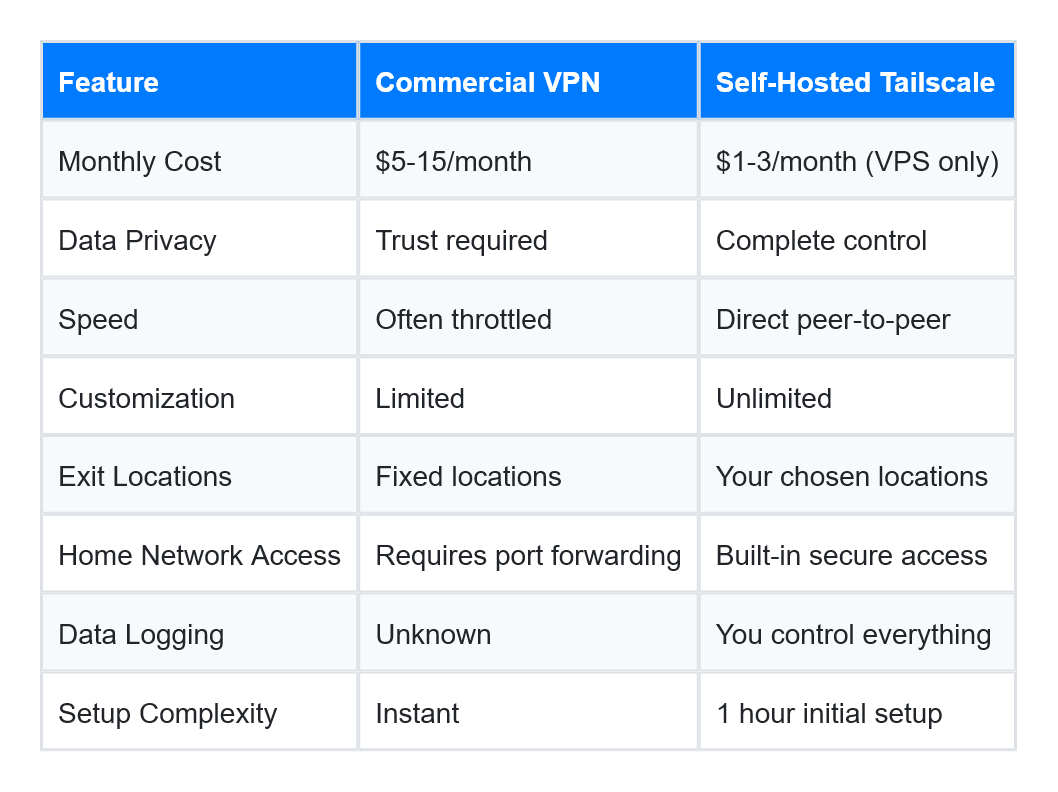
Setting Up Tailscale Exit Nodes on Home Devices
Devices with Tailscale apps (Apple TV, Fire TV, Google TV, iOS, Android, macOS, Windows) are incredibly simple to configure as exit nodes.
Step 1: Install Tailscale
- Download Tailscale from your device's app store
- Sign in with your Tailscale account (free tier supports up to 3 users and 100 devices)
- Your device automatically joins your private network (Tailnet)
Step 2: Enable as Exit Node
- Open the Tailscale app on your device
- Navigate to settings and enable "Advertise as exit node"
- The device will request exit node permission
Step 3: Approve in Admin Console
- Visit the Tailscale admin console at: https://login.tailscale.com/admin/machines
- Find your device in the machine list
- Click the three dots menu next to it
- Select "Edit route settings"
- Check "Use as exit node" and save
That's it! Your home device is now a private exit node. Any device on your Tailscale network can route traffic through it by selecting it from the exit node menu.
Why Racknerd for Your VPS Exit Node
After testing numerous VPS providers, Racknerd stands out for self-hosted VPN projects. Their entry-level plans start at under $11/year (yes, per year), and in my personal experience, I've achieved 100% uptime while hosting multiple websites alongside Tailscale exit nodes.
Recommended configuration for a Tailscale-only exit node:
- 1GB RAM minimum (sufficient for exit node traffic)
- 1 CPU core
- 20GB+ storage
- Any available location (choose based on your geographic needs)
Want to do more with your server? With 2GB+ RAM, you can run additional services in Docker containers:
- CasaOS — A simple dashboard for running your own private cloud storage and installing a limited number of self-hosted applications, similar to Google Drive
- Nextcloud — A complete replacement for Google Workspace with file storage, calendar, contacts, and office documents
- Pi-hole — Network-wide ad blocking
- Jellyfin — Personal media streaming server
Racknerd's pricing beats competitors like DigitalOcean ($6/month minimum) and Linode ($5/month minimum) while maintaining enterprise-grade uptime. You're not paying for flashy dashboards — you're getting raw infrastructure and proven reliability.
Complete Ubuntu VPS Setup: From Bare Server to Secure Exit Node
This section assumes you have a fresh Ubuntu VPS from Racknerd (or any provider) with root SSH access. We'll secure the server, install Tailscale, configure it as an exit node, and lock it down to only be accessible through your Tailscale network.
Initial Server Setup and Security
Step 1: Connect to Your Server
Open your terminal (macOS/Linux) or PowerShell (Windows) and connect via SSH:
ssh root@your_server_ipReplace your_server_ip with the IP address provided by Racknerd. The username should be Ubuntu if you choose a Ubuntu server.
Step 2: Update System Packages
Always start with a fully updated system:
sudo apt update && sudo apt upgrade -yThis updates package lists and upgrades all installed software to their latest versions. The -y flag automatically confirms updates.
Step 3: Configure Firewall (UFW)
Ubuntu's Uncomplicated Firewall (UFW) will protect your server. We'll initially allow SSH, then later restrict it to Tailscale only:
sudo apt install ufw -y
sudo ufw allow 22/tcp
sudo ufw allow 41641/udp
sudo ufw enable
The port 41641/udp allows Tailscale's WireGuard connections. When prompted to enable UFW, type 'y' and press Enter.
Installing and Configuring Tailscale
Step 4: Install Tailscale
Tailscale provides an official installation script that automatically detects your Ubuntu version:
curl -fsSL https://tailscale.com/install.sh | shThis script downloads and installs Tailscale from their official APT repository. The installation completes in 10–30 seconds.
Step 5: Authenticate Your Server
Start Tailscale and connect it to your account:
sudo tailscale upThis command outputs an authentication URL. Copy the entire URL, paste it into your web browser, and log in to your Tailscale account. Once authenticated, your server appears in your Tailscale admin console with a unique Tailscale IP address (usually starting with 100.x.x.x).
Step 6: Enable IP Forwarding
For your server to route traffic as an exit node, enable IP forwarding at the kernel level:
echo 'net.ipv4.ip_forward = 1' | sudo tee -a /etc/sysctl.conf
echo 'net.ipv6.conf.all.forwarding = 1' | sudo tee -a /etc/sysctl.conf
sudo sysctl -p
These commands permanently enable IPv4 and IPv6 forwarding. The sysctl -p command applies the changes immediately without rebooting.
Step 7: Advertise as Exit Node
Tell Tailscale this server should function as an exit node:
sudo tailscale up --advertise-exit-nodeYour server now advertises itself to your Tailscale network as an available exit node.
Step 8: Configure Firewall for Tailscale Traffic
Allow forwarding traffic through the Tailscale interface:
sudo ufw allow in on tailscale0
sudo ufw reload
This permits traffic flowing through Tailscale's virtual network interface while maintaining security against public internet connections.
Step 9: Approve Exit Node in Admin Console
- Visit: https://login.tailscale.com/admin/machines
- Locate your Ubuntu server in the devices list
- Click the three-dot menu next to your server
- Select "Edit route settings"
- Check "Use as exit node"
- Optional but recommended: Disable key expiry under the same menu to prevent the connection from timing out
- Click Save
Locking Down SSH Access to Tailscale Only
This is the critical security step that makes your server virtually invisible to internet scanners and brute-force attacks. By restricting SSH to only your Tailscale network, your server becomes accessible exclusively through the encrypted Tailscale mesh.
Step 10: Restrict SSH to Tailscale Interface
Edit the SSH daemon configuration:
sudo nano /etc/ssh/sshd_configFind the line that says #ListenAddress 0.0.0.0 (it may be commented out with #). Replace it with:
ListenAddress 100.x.x.xReplace 100.x.x.x with your server's actual Tailscale IP address (find it in the admin console or by running tailscale ip -4).
This tells SSH to only listen on the Tailscale interface, making it completely inaccessible from the public internet.
Save the file (Ctrl+O, Enter) and exit nano (Ctrl+X).
Step 11: Restart SSH Service
Apply the SSH configuration changes:
sudo systemctl restart sshdImportant: Don't close your current SSH session yet. Open a new terminal window and test connecting via the Tailscale IP address:
ssh [email protected]If the connection works, your SSH-over-Tailscale setup is successful. You can now safely close the original session.
Step 12: Remove Public SSH Access from Firewall
Now that SSH only listens on Tailscale, remove the public SSH rule:
sudo ufw delete allow 22/tcp
sudo ufw reload
Your server is now locked down — SSH access is only possible through your encrypted Tailscale network. This provides 100% protection against SSH brute-force attacks, port scanners, and unauthorized access attempts.
Verification and Testing
Step 13: Test Your Exit Node
From any device with Tailscale installed:
On mobile (iOS/Android):
- Open the Tailscale app
- Tap "Exit Node"
- Select your Ubuntu server
- Visit a website like Browserleaks in your browser — you should see your VPS IP address
On desktop (MacOS/Windows/Linux):
- Open Tailscale settings
- Select your Ubuntu server as the exit node
- Run
curl ifconfig.mein terminal—you should see your VPS IP address
Congratulations! Your traffic is now routing through your private, encrypted VPS exit node.
Using Your Private VPN Network
With both residential and VPS exit nodes configured, you have incredible flexibility:
For remote work abroad:
- Connect to your home exit node to access work resources as if you're home
- Maintain your residential IP address for services that geo-restrict VPNs
For public WiFi security:
- Route through your VPS exit node for encrypted traffic on coffee shop WiFi
- Prevent WiFi snooping and man-in-the-middle attacks with end-to-end encryption
For accessing geo-restricted content:
- Switch between residential and VPS exit nodes depending on the service
- Deploy multiple Racknerd VPS servers in different countries for global access
For privacy from ISPs:
- Your ISP only sees encrypted Tailscale traffic, not your actual browsing
- No commercial VPN company collecting and potentially selling your data
Troubleshooting Common Issues
Exit node not appearing in available nodes:
- Verify you approved the exit node in the admin console
- Check that IP forwarding is enabled:
sudo sysctl net.ipv4.ip_forward - Ensure firewall rules allow Tailscale:
sudo ufw status
Can't connect to VPS via SSH after lockdown:
- Make sure you're connecting using the Tailscale IP, not the public IP
- Verify Tailscale is running:
sudo tailscale status - If locked out, use your VPS provider's console access to revert SSH settings
Slow exit node speeds:
- Test your VPS network speed directly to rule out Racknerd connectivity
- Check if your VPS is under CPU load:
topcommand - Try a different Racknerd location closer to your physical location
Exit node connection drops:
- Disable key expiry in the Tailscale admin console
- Ensure your VPS isn't hibernating or suspended
- Check VPS provider status page for outages
Expanding Your Private Infrastructure
Once you're comfortable with your Tailscale VPS exit node, consider expanding:
Add more VPS locations: Racknerd offers servers in multiple countries. Deploy exit nodes strategically for global coverage.
Install CasaOS: Transform your server into a private cloud with a user-friendly Docker container manager (https://github.com/IceWhaleTech/CasaOS). Run services like file sync, password managers, and photo backup.
Set up Nextcloud: With 2GB+ RAM, deploy a full Google Workspace alternative for documents, calendar, contacts, and video calls — all privately hosted.
Deploy subnet routers: Beyond exit nodes, Tailscale can expose entire subnets, letting you access home network devices or VPS-hosted services without individual Tailscale installations.
Cost Analysis: True Freedom From Subscriptions
Let's compare the annual costs:
Commercial VPN: $60–180+/year for a single plan
Your private network:
- Tailscale Free Tier: $0/year (up to 3 users, 100 devices)
- Racknerd VPS: $11–30/year
- Residential exit nodes: $0 (using existing devices)
- Total: $11–30/year with unlimited customization
You're saving 80–90% while gaining complete control, better speeds, and the ability to expand into self-hosted services. The privacy benefits — knowing exactly who controls your data — are priceless.
Your Network, Your Rules
Building your own private VPN network with Tailscale represents the ultimate control over your internet privacy and connectivity. You're no longer trusting commercial VPN providers with vague privacy policies. You're not paying monthly subscriptions for throttled speeds. Instead, you've created infrastructure you own, understand, and control completely.
The setup takes about an hour following this guide, even without Linux experience. The ongoing maintenance is minimal — Tailscale handles the complex networking automatically, and your Racknerd VPS runs reliably 24/7. You've built professional-grade infrastructure for the cost of a single month of commercial VPN service.
Whether you're a remote worker securing public WiFi connections, a digital nomad accessing home resources from anywhere, or simply privacy-conscious about your internet traffic, this hybrid approach gives you flexibility that no commercial service can match. Your residential exit nodes provide authentic home connectivity, while your self-hosted VPS exit nodes deliver data center reliability and global reach.
Start with a single Racknerd VPS and a few home devices. As you grow comfortable with the system, expand to multiple geographic locations, add cloud storage, or deploy additional services. The foundation you've built today scales infinitely — all under your complete control.
Join the Community
Want to connect with other privacy-conscious remote workers and tech enthusiasts? Join our Discord community at 404officenotfound.com/discord where we discuss:
- Self-hosting projects and troubleshooting
- VPN and privacy tool recommendations
- Remote work strategies and digital nomad destinations
- Cost-effective tech solutions and infrastructure tips
Got questions about your Tailscale setup or want to share your VPS configuration? Drop by the Discord — we'd love to help you optimize your private network!
Join the Discord Community