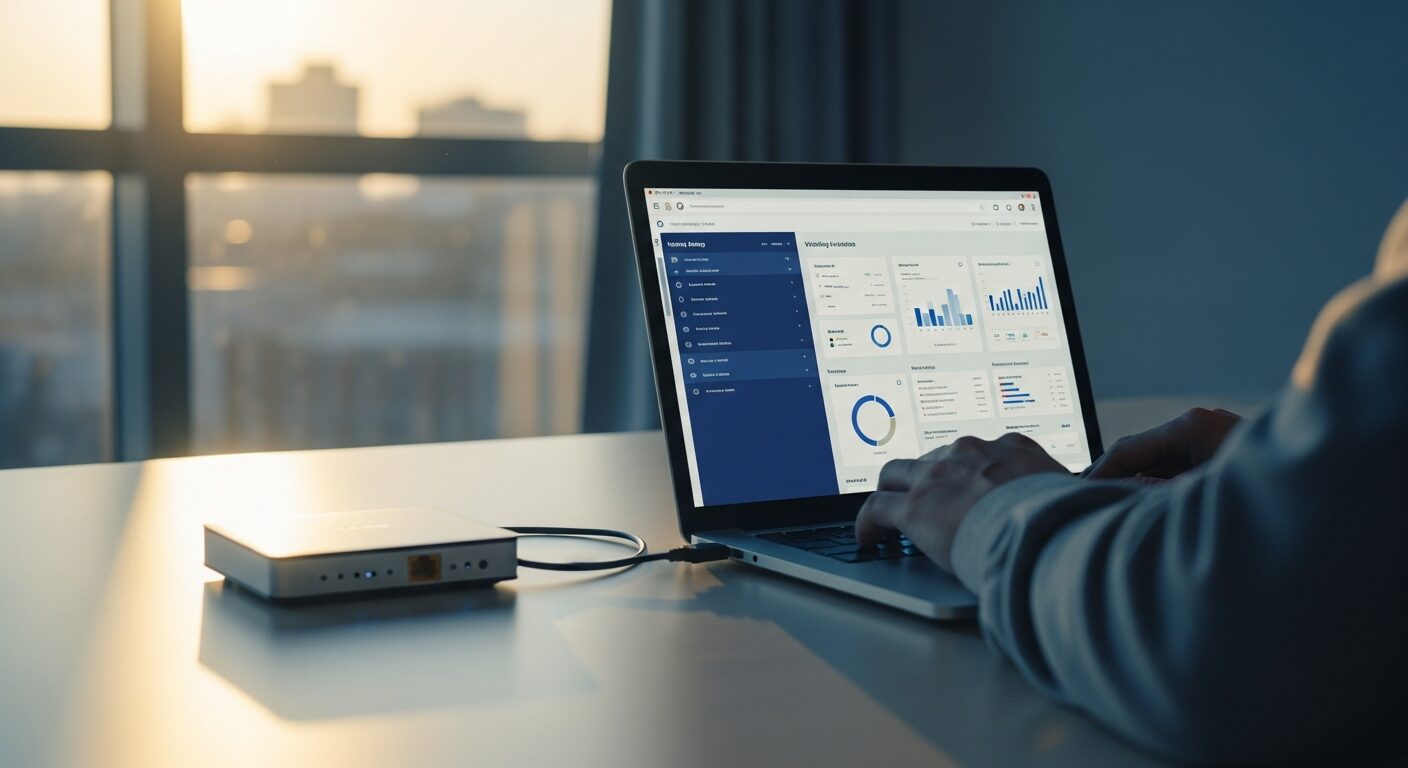
Remote workers face a strange paradox: the more global work becomes, the more online systems expect you to behave as if you never left your home IP range. Show up from a random datacenter VPN in another country, and suddenly "security" systems get very interested in you.
If you've ever had a payroll portal lock you out, a corporate VPN refuse to connect, or a bank flag your login just because you dared to work from another timezone, you've met the problem this article is trying to solve.
Static residential VPNs exist to fix exactly that. In this guide, you'll see how to use StarVPN's dedicated residential IPs, the AmneziaWG protocol, and a compact GL.iNet Beryl AX travel router to make your connection look and behave like "home" from almost anywhere. You'll also see how to build a backup path using Tailscale and a home micro‑PC or Raspberry Pi so one failure never takes your job offline.
Why IP reputation matters so much for remote work
Most fraud and security systems don't know you as a person. They know patterns:
- "Is this IP in a datacenter or a home ISP range?"
- "Is this device suddenly logging in from another country?"
- "Is this connection coming from a known VPN or anonymizer service?"
If the answer looks wrong, the system doesn't care that you're a legit remote worker sitting in a café in Lima or Lisbon. It just sees risk.
Common outcomes the 404 community runs into:
- HR / payroll portals start throwing extra verification or block you outright.
- Corporate VPNs and RDP gateways refuse connections from known VPN IP ranges.
- Banks and fintech apps treat your login as suspicious because the IP screams "proxy."
Residential IPs flip that script. Instead of routing you through cloud infrastructures (AWS, OVH, etc.), they originate from real home and mobile ISP ranges, usually via Tier‑1 ISPs. To IP reputation tools and geolocation databases, this looks like normal household traffic, not a shady exit node.
What makes StarVPN interesting for remote workers
StarVPN sits in a niche that's a lot more specialized than "just another streaming VPN."
Instead of focusing on a handful of shared datacenter locations, it's built around:
- Static residential IPs (tied to real home ISP ranges)
- Rotating residential IPs (for more complex or multi‑region workflows)
- Mobile IPs (4G/LTE ranges that sites are very hesitant to block)
- Tier‑1 ISP backing rather than generic hosting providers
Two plans stand out for remote workers:
| PLAN | PRICE | KEY LIMITS & FEATURES | BEST FOR |
|---|---|---|---|
| Business Residential | ~$20/month | Unmetered data; up to 5 countries; 20 static IP updates/month; 5 personalized static residential IP slots (e.g., Canada, UK, Germany, US, Italy); residential + rotating + mobile IPs; SOCKS5/HTTP; OpenVPN, WireGuard, AmneziaWG. | Solo remote workers who need 1–5 stable "home" locations with dedicated static residential IPs that only they use. |
| Premium Residential | ~$45/month | 10GB/day rotating/sticky; 60+ countries; 1000 manual IP updates/month; home residential user IPs; residential + rotating + mobile IPs; SOCKS5/HTTP; OpenVPN, WireGuard, AmneziaWG. | Multi‑region freelancers/agencies managing many geos or accounts, or anyone who needs rotation and mobile IP coverage on top of static slots. |
In practical testing, the static residential endpoints behaved almost exactly like a real home connection. IP reputation tools and VPN/proxy detectors generally treated them as clean residential ISP space, not as generic VPN exits. You can still hit the occasional "meh" IP, but most addresses are very solid for day‑to‑day remote work logins.
One useful detail: if you open a support ticket from a new account and explain that you want to test residential access, it's often possible to get a short trial window (typically around two days) to run your own checks before you commit.
Why AmneziaWG matters (And how StarVPN uses it)
Protocols matter almost as much as IPs. Many corporate and national networks now recognize and throttle or block WireGuard and OpenVPN outright. That's where AmneziaWG shows up.
AmneziaWG is a fork of WireGuard‑Go that keeps the same cryptography (Curve25519, ChaCha20‑Poly1305, key rotation) but changes how the traffic looks on the wire. It randomizes handshake sizes, tweaks packet headers, and can mimic common UDP patterns, making it much harder for Deep Packet Inspection systems to confidently say "this is WireGuard, block it."
StarVPN exposes AmneziaWG in two main ways:
- As a protocol option directly in their apps (Windows, macOS, iOS, Android) — select "AmneziaWG" in settings and connect.
- As downloadable AmneziaWG config files per slot, which you can import into routers or the standalone Amnezia client.
For remote workers on finicky networks, that combination—residential IPs plus obfuscated transport—is a big part of why sessions stay stable instead of suddenly dying because "VPN traffic" was detected.
Two ways to use StarVPN: Apps vs Router
There are two main integration patterns that make sense for the 404 community:
| METHOD | PROS | CONS | IDEAL USE CASE |
|---|---|---|---|
| Beryl AX Router (GL.iNet Beryl AX) | Keeps work device "clean"; Ethernet‑only hygiene; can share one residential IP across multiple devices. | Extra hardware to carry and configure. | Corporate laptops and strict IT policies where installing a VPN app is not allowed. |
| StarVPN Apps (StarVPN) | No extra hardware; one‑click AmneziaWG; native apps for Windows, macOS, iOS, Android. | Requires installing VPN software on your work or personal device. | Personal laptops and phones, or freelance setups where you control the OS and software. |
Both options can work well. The router pattern is closer to a "portable home network" you plug your laptop into. The apps pattern is better when you want a simple, fast setup on devices you fully own.
Tutorial: Using StarVPN + Beryl AX to look like you're always at home
Let's start with the more "corporate‑friendly" approach: letting the Beryl AX travel router handle StarVPN, while your work laptop just sees a wired LAN.
Step 1: Get your StarVPN residential slot ready
- Sign up for the Business Residential or Premium Residential plan at StarVPN.
- Pick your "home" country (for most people, this matches where your employer and bank expect you to be).
- In the StarVPN dashboard, assign one of your static residential slots to that country and download the WireGuard/AmneziaWG configuration file for that slot.
- If you want to test first, open a support ticket from a new account and ask for a short residential trial so you can verify everything works with your stack.
Step 2: Set up the Beryl AX router
- Power on the GL.iNet Beryl AX and connect your setup laptop via Ethernet or its default Wi‑Fi.
- Open a browser and go to
192.168.8.1. Set an admin password and connect the router to upstream internet (hotel/Airbnb Wi‑Fi or WAN port).
Step 3: Import the StarVPN config as WireGuard
- In the Beryl admin UI, go to VPN → WireGuard Client.
- Choose to import a configuration file and upload the
.conffrom your StarVPN residential slot. - Name it something like StarVPN-US-Residential and save.
- Click "Connect" and wait for the status to show "Connected" with traffic stats.
Even if the UI labels this profile as "WireGuard," AmneziaWG obfuscation still applies if the config includes those parameters—the obfuscation happens inside the WireGuard‑like traffic.
Step 4: Lock your work device to LAN only
- On your work laptop, enable airplane mode to kill Wi‑Fi and Bluetooth, then plug in via Ethernet to the Beryl AX.
- Disable OS‑level location services if possible, so sites mostly rely on IP/geolocation.
- At this point, your laptop just sees a wired network; only the router knows it is tunneling via a StarVPN residential IP in your home country.
Step 5: Verify that you "look local"
- Visit an IP check site (ipinfo, whatismyipaddress) and verify that your IP, ISP, and country match your StarVPN slot.
- Run a couple of VPN/proxy detection tests to confirm it shows up as residential, not as a known VPN node.
- Start with low‑risk logins (email, streaming), then test your employer tools, corporate VPN, or banking in a controlled way.
Once this is stable, you essentially have a portable home network in your backpack: plug into the Beryl AX, and your job, bank, and SaaS tools see a familiar "home" IP, even if you're nowhere near it.
Tutorial: Using StarVPN's native apps (Windows, macOS, iOS, Android)
If you own the hardware you work from and don't have corporate restrictions, the native apps are much simpler than carrying a router.
Step 1: Install the StarVPN apps
- On desktop, download the app from the StarVPN website (Windows/macOS).
- On mobile, grab "StarVPN / Residential VPN" from the App Store or Google Play.
- Log in with your StarVPN account credentials.
Step 2: Select your residential slot and protocol
- In the app, pick the dedicated residential slot you configured in the StarVPN dashboard (e.g., "US Residential #1").
- Go to settings and choose AmneziaWG as the protocol for maximum stealth, or fall back to WireGuard/OpenVPN if needed.
- Click Connect and wait for the app to confirm the tunnel is up.
Step 3: Run the same verification tests
- Check your IP/ISP/geo via an IP checker.
- Hit a proxy/VPN detector or two.
- Then start testing your actual remote work stack: Slack, corporate VPN, banking, HR tools, cloud IDEs, etc.
For many digital nomads and freelancers, this "just use the apps" approach is enough. The router method becomes more attractive once you're dealing with locked‑down employer hardware or want everything to feel like a simple Ethernet cable instead of "yet another app."
Building redundancy: Tailscale + home exit nodes
No matter how good a commercial service is, you don't want your income tied to a single provider. Networks change. Providers have outages. Firewalls get updated.
The easiest way to build a safety net is with Tailscale exit nodes:
Option 1: Headless micro‑PC at home
- Leave a low‑power mini PC (or always‑on desktop) running at home.
- Install Tailscale, log in, and enable it as an exit node in the admin console.
- Add your laptop (and optionally your travel router) to the same Tailnet.
- When needed, pick that device as your exit node so your traffic appears exactly as if you were home, using your true ISP IP.
Option 2: Raspberry Pi exit node
- Install Tailscale on a Raspberry Pi at home; enable it as an exit node.
- Or self‑host your own WireGuard/AmneziaWG server on the Pi and connect from your devices.
- Use it as a backup "home IP" if your StarVPN slot ever stops working on a specific network or for a specific service.
This gives you a robust stack: StarVPN residential IPs as the primary, self‑hosted home exit nodes as the emergency parachute. If one fails, you flip a switch in Tailscale instead of losing a day of work.
Before you bet your paycheck on any VPN… test it
Every remote job stack is different. Some employers have aggressive device policies. Some banks care a lot about IP ranges. Some SaaS tools really hate VPNs.
Use StarVPN's trial, your own test logins, and a weekend afternoon to run through:
- Employer VPN / SSO / remote desktop from your "home" slot.
- Banking, tax portals, payroll dashboards.
- Any high‑value SaaS (CRMs, ad accounts, dev tools).
If it passes those tests, you've got a much more reliable base to build on.
Bringing it all together for 404: Office Not Found readers
The goal of this setup is not to "hide" in a shady way—it's to make a globally mobile life compatible with systems that still assume you sit behind the same cable modem forever.
For most people in the 404 community, a practical stack looks like:
- Primary: A static residential slot on StarVPN, using AmneziaWG for stealth, either on the Beryl AX or via the native apps.
- Backup: A Tailscale exit node at home (micro‑PC or Raspberry Pi) you can switch to if something breaks.
- Hygiene: Ethernet‑only for work devices when possible, OS‑level location minimized, and a clear separation between "job laptop" and "experiment laptop."
Once it's dialed in, you can move countries, switch Airbnbs, or camp out in an underpowered co‑working space—and your employer, bank, and tools still see the same calm, boring, "this person is at home again" connection.